Ghost Mannequin AI
Remove the mannequin from your clothing photo and get the hollow, 3D ghost mannequin look on a pure white background — no Photoshop neck joint needed.
15 credits per picture · a failed run costs nothing
Clothing photo
The garment on a mannequin or worn by a model, facing the camera.
Drop an image here. Set everything up first — a free account is only needed when you generate.
Inside of the neck (optional)
The back of the neck from the inside: collar open, laid flat, back of the neck at the top. Add it when the inside differs from the outside. Labels are not drawn.
For the best result
- Take both photos in the same light, from the same height.
- Iron or steam the garment, and button it as it should be shown.
- Sheer, lace and mesh fabric show what is behind them — results are weaker.
- One garment per photo.
Size
Example
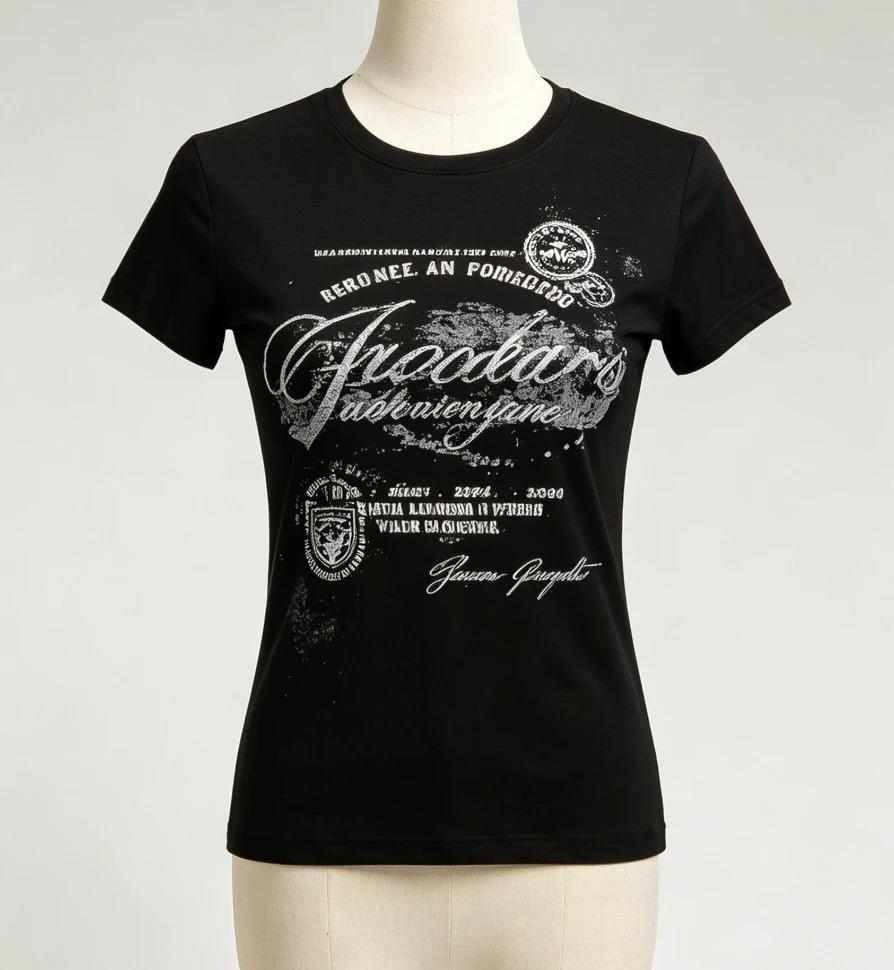
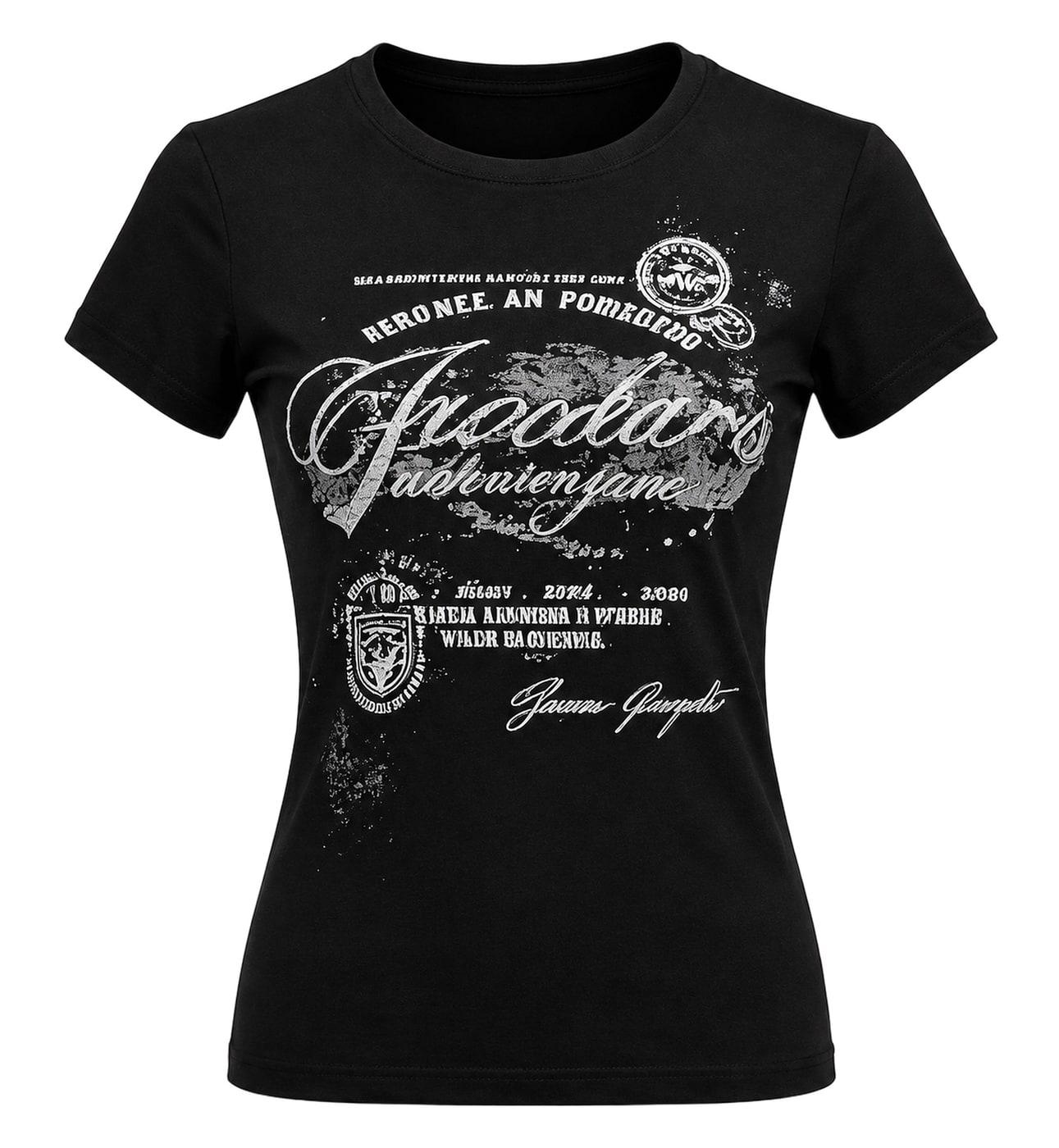
What is the ghost mannequin effect?
A ghost mannequin photo — also called an invisible mannequin or "hollow man" photo — shows a garment with the shape it has when worn, but with no mannequin or model in it. You can see into the neck opening, where the inside of the back of the garment shows, as if an invisible body were wearing it.
Done by hand, it means photographing the garment on a mannequin, photographing the inside of the neck separately, and joining the two in Photoshop. This tool does the same job from your photo: the mannequin or model is removed, the inside of the neck is filled — from your inside photo when you add one — and the garment is set on pure white.
Use cases
Gallery images for apparel listings
Show the fit and the neckline of a shirt, hoodie, dress or jacket next to your on-model photos.
Your own store, Shopify and Etsy
One consistent look across a whole collection, without a studio retoucher.
Lookbooks and line sheets
Clean product pictures for wholesale buyers and catalogues.
How it works
- Step 1
Upload your photo
The garment on a mannequin or worn by a model, facing the camera. Add a photo of the inside of the neck if you have one — JPEG, PNG or WEBP.
- Step 2
Generate
The mannequin is removed, the inside of the neck is filled, and the garment is set on pure white. 15 credits, shown on the button.
- Step 3
Check, download or edit
Compare the result with your garment, then download it or open it in the image editor to add text or fix a detail.
Photo tips for a better result
- Take the garment photo and the inside photo in the same light, from the same height.
- For the inside photo, open the collar and lay it flat, with the back of the neck at the top of the photo.
- Iron or steam the garment, and button or zip it the way it should be shown.
- One garment per photo. Sheer, lace and mesh fabric show what is behind them, so results are weaker.
What you get
The hollow 3D look
The garment keeps the shape it has when worn, with the inside of the neck showing — not a flat cut-out.
A pure white background
The garment is cut out and set on pure white, RGB 255, 255, 255 — not a near-white drawn by AI.
Priced before you start
15 credits a picture, with or without the inside photo. A failed run costs nothing.
Ghost mannequin vs flat lay vs on-model
| Ghost mannequin | Flat lay | On-model | |
|---|---|---|---|
| Shows the fit | Yes — the garment keeps its worn shape | Partly — the garment lies flat | Yes — on a real body |
| What you need | A mannequin or model photo; this tool does the rest | A flat surface and an overhead camera | A model and a shoot |
| Consistency across a collection | High — every garment on the same white | High | Varies with pose and model |
Questions
- What is a ghost mannequin?
- A product photo of a garment with the shape it has when worn, but with no mannequin or model visible — the inside of the neck shows, as if an invisible body were wearing it.
- Is an invisible mannequin the same as a ghost mannequin?
- Yes. Ghost mannequin, invisible mannequin and hollow man all describe the same effect.
- Do I need a photo of the inside of the neck?
- No, it is optional. Without it, the inside of the neck is drawn as plain fabric in the garment’s colour. Add it when the inside differs from the outside — a lining, a contrast colour or a print — so the inside matches your garment. Neck labels are never drawn: AI cannot copy small text exactly, so a size or care label would come out with the wrong letters.
- Can I use a photo of clothing worn by a person?
- Yes. The person is removed along with any skin and hair. Parts of the garment that were hidden — behind hair or arms — have to be filled in, so check them against your garment. Only upload photos you have the right to use.
- Can I use it as my Amazon main image?
- This picture is redrawn by AI, so use it for gallery images and your own store. Main image rules for clothing differ by category and marketplace — check the current image requirements for your category. For a main image made from your own photo, use the White Background Maker.
- Which clothes work best, and which don’t?
- T-shirts, hoodies, sweaters, shirts, dresses and jackets photographed one at a time work best. Sheer, lace and mesh fabric, outfits of several pieces, and garments with most of the inside showing — strapless or off-shoulder styles — are harder.
- Will it change my print, logo or colour?
- It is told to keep them exactly, but the garment is redrawn, so small details can change. Compare the print, logo, colour, buttons and pockets with your garment before you publish, and fix a detail in the image editor if you need to.
- Why does the inside of the neck not match my garment?
- The inside of the neck and the back neckline are hidden in your photo, so AI fills them in — and that is where it goes wrong most often. Lace or a ruffle on the front neckline can be carried round to the back, even when your garment has none there. Check the inside against your garment before you publish; generate again, or erase an extra trim with the Magic Eraser.
- How much does it cost?
- 15 credits a picture, with or without the inside photo. If a run fails, the credits are returned.